
Week 34
Create your own WordPress theme and then customise it. Add the hacks mentioned in the lesson CMS and WordPress part 3. Do some research on the Internet and find two more hacks and implement it on your site.
For this week’s learning activity I decided to create a child theme from an already existing WordPress theme. I created a WordPress site in one.com through 1-clic installation and chose the Twenty Nineteen theme. Since I was going to make only a few changes, I decided to work directly in one.com. I followed the LinkedIn tutorial WordPress: Building Child Themes by Patrick Rauland.
First, I edited the child’s style.css and changed the background colour as suggested in the tutorial.
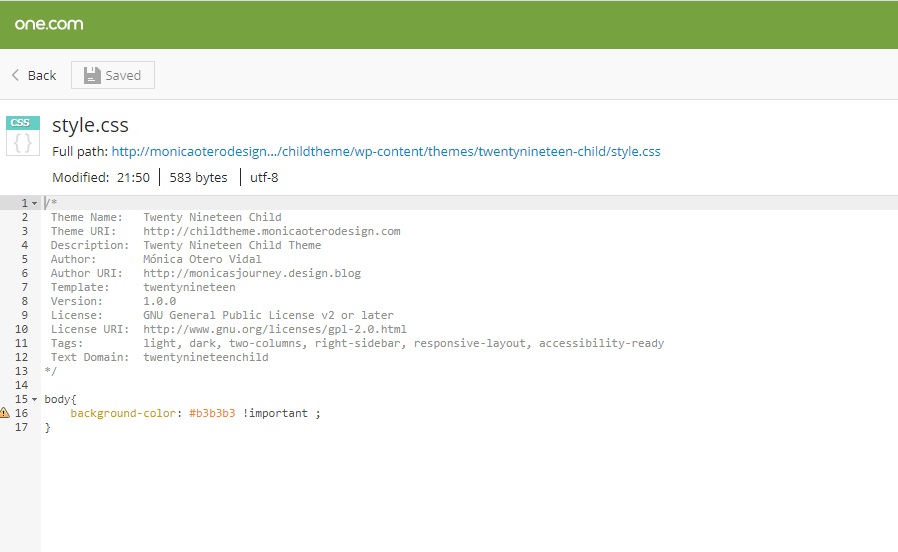
css file in child theme 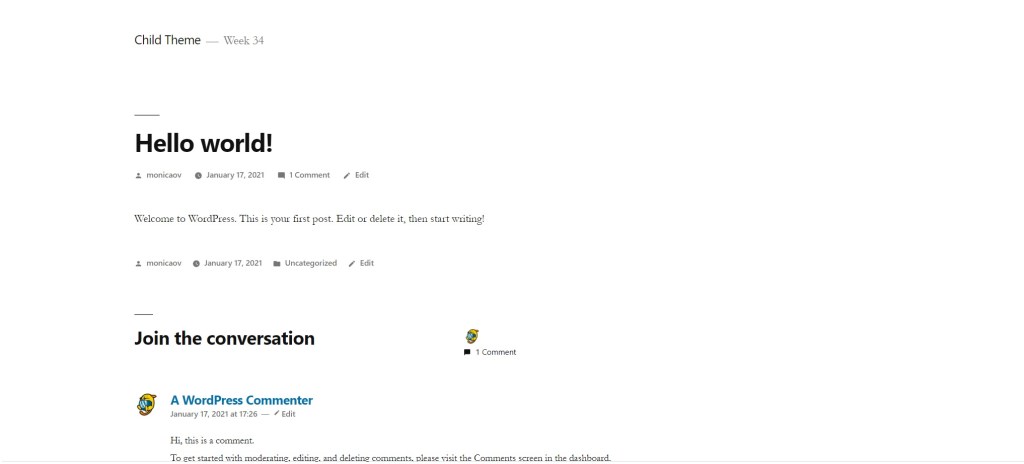
Parent 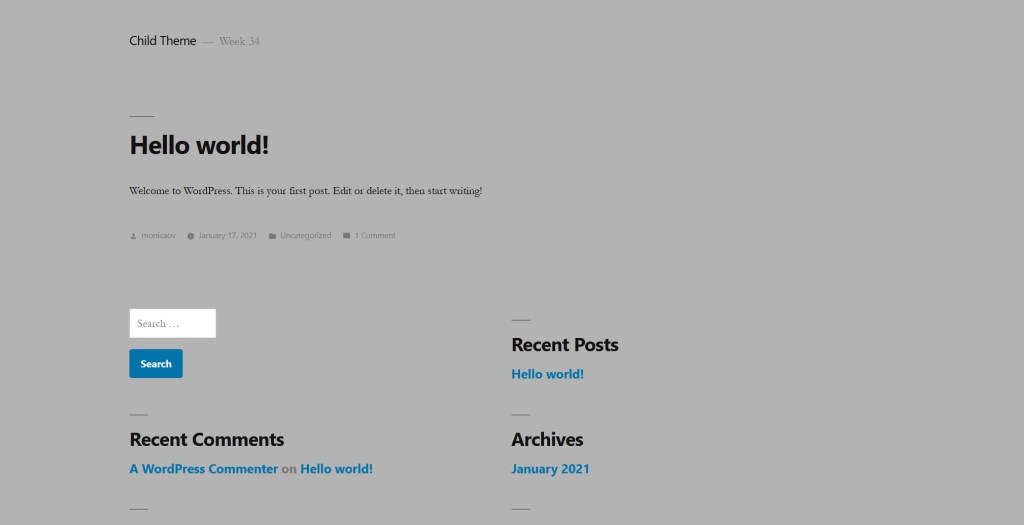
Child
After that I played around editing in the browser and changed background colours, text size and style…
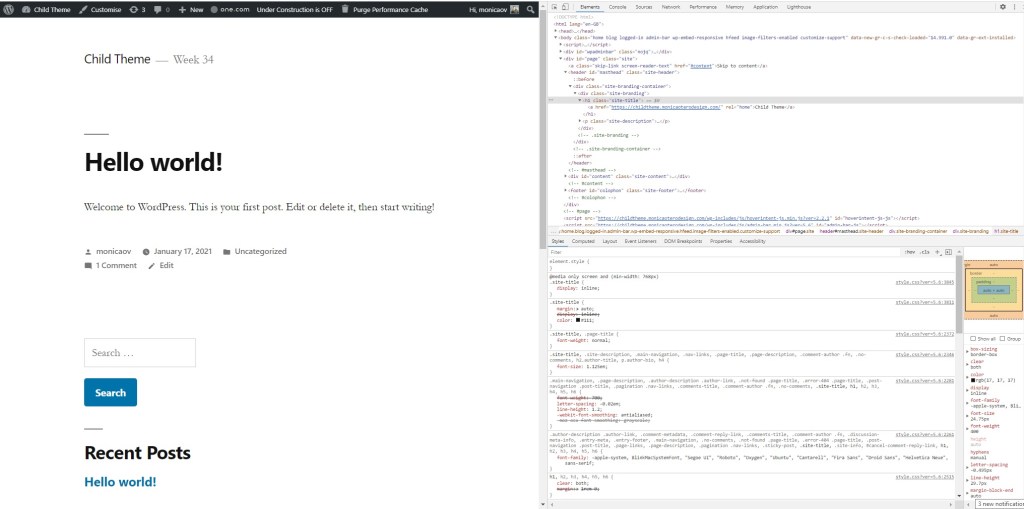
Parent 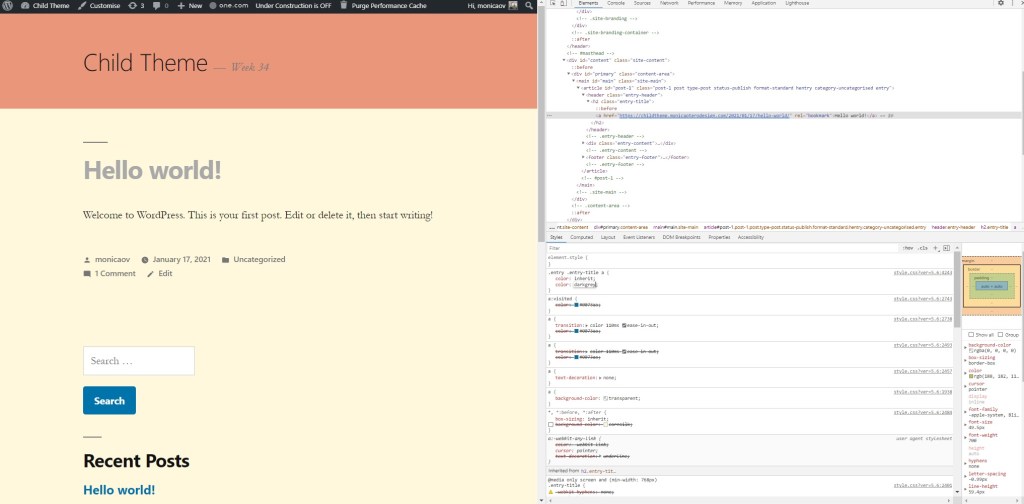
Child
Then I added a favicon to my site following the instructions on this weeks lesson. Although the parent theme I chose allows to add a favicon, I decided to try and do it by adding it to the functions.php file to see if it worked. It did. Now I know I can change the WordPress icon to the one I choose even when the selected theme doesn’t give me the option.
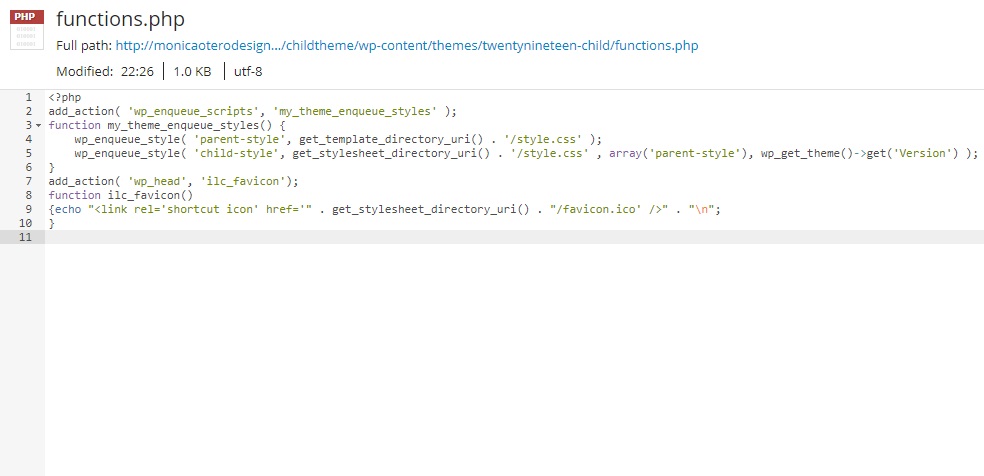
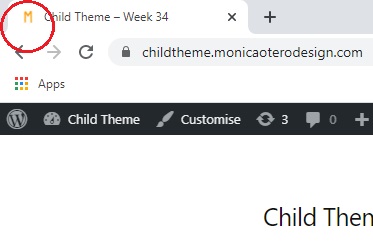
I changed a few more details in the Customise section. The theme I picked doesn’t allow too many changes, so I only added a menu, two extra pages and changed the colour of the links to deep red.
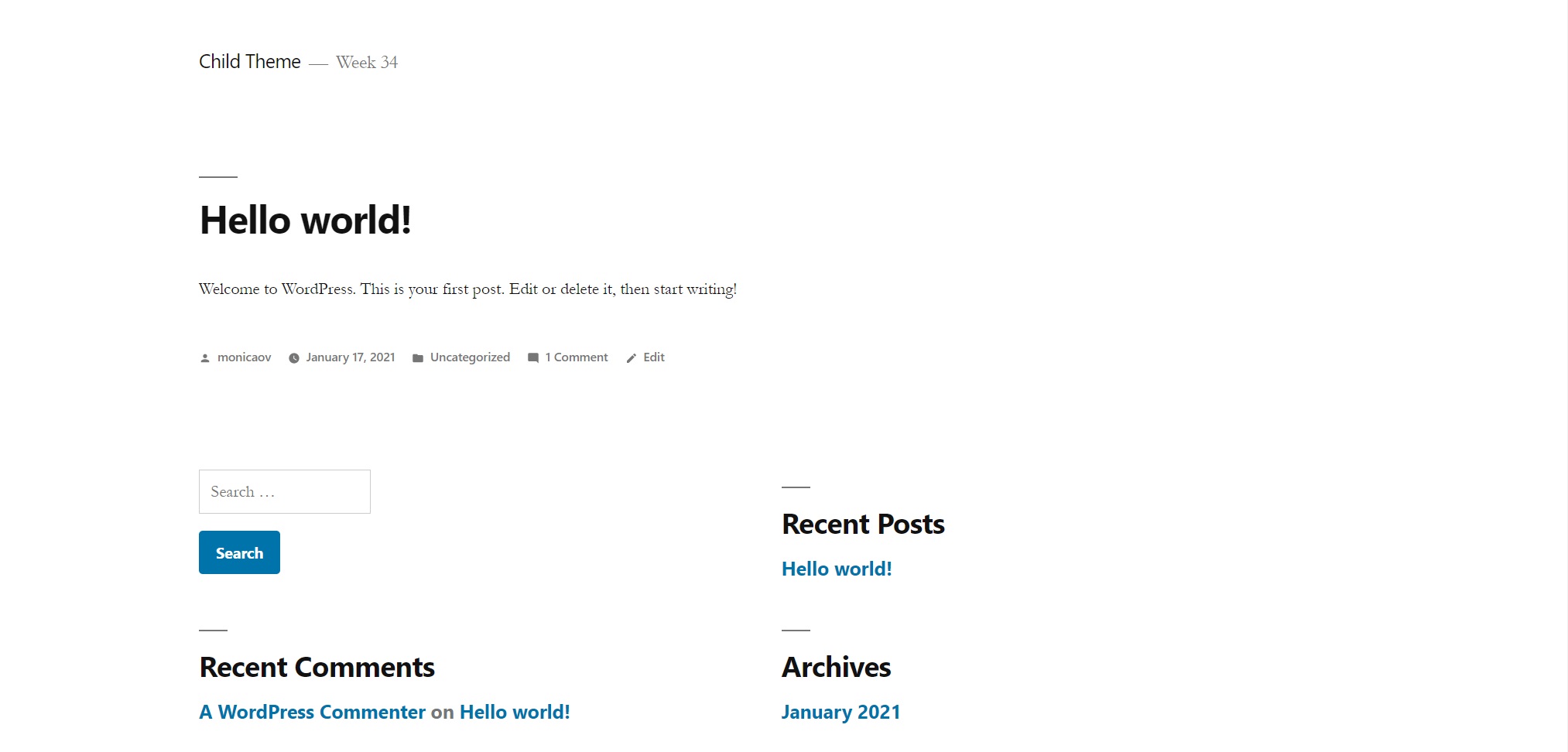
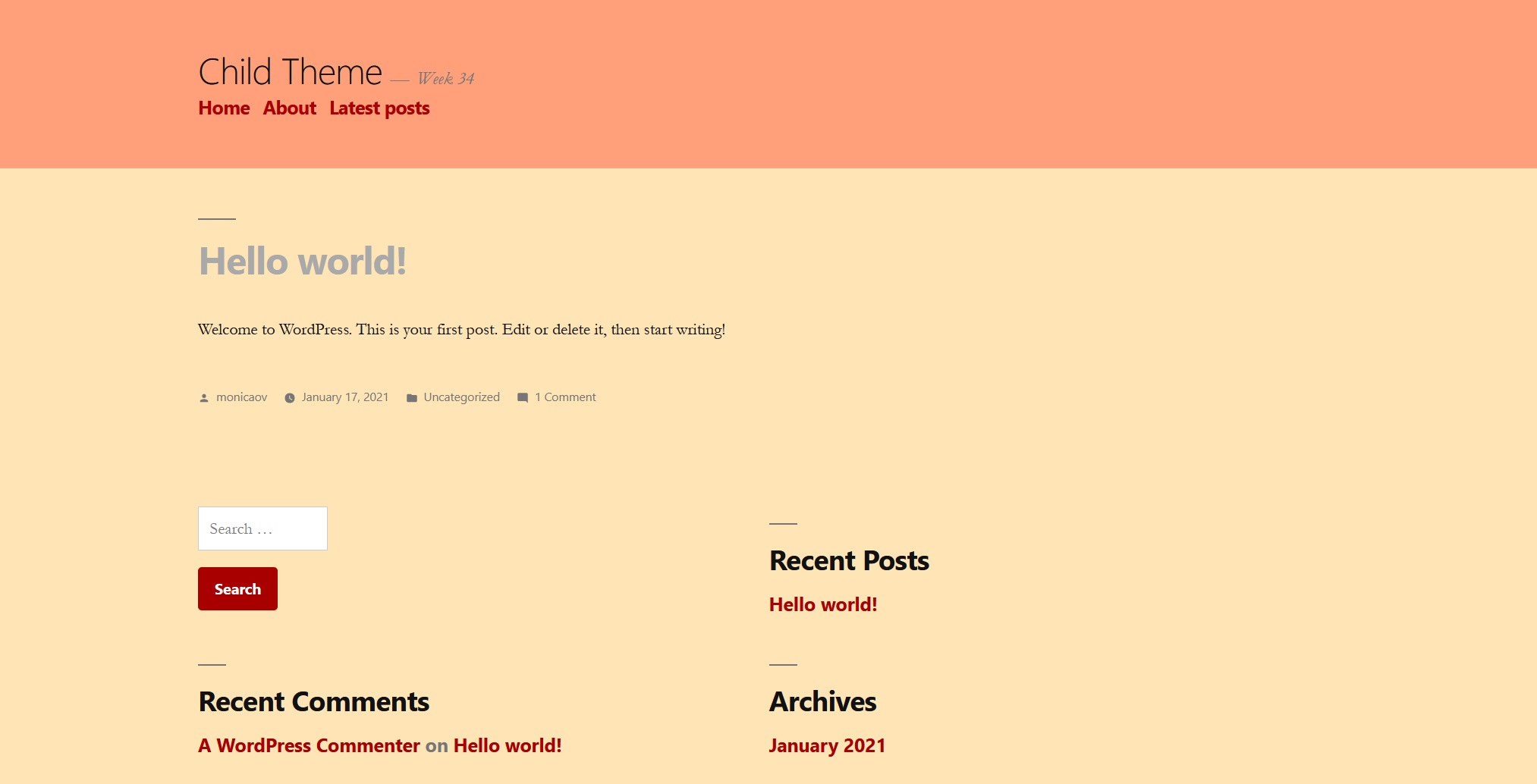
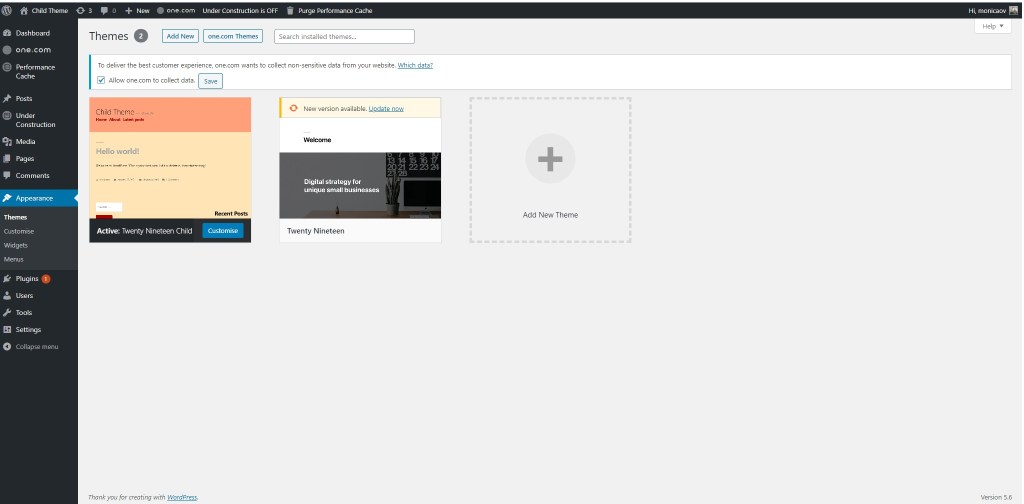
Finally, I added a screenshot for the preview of the child theme.
 Mónica's Design Journey